
Submit service requirements and review delivery
Find your paid service order, submit requirements and additional information, review delivery, and request revisions or maintenance.
On this page
Confirm payment and find the order
- For a fixed-price service, pay through the product page. For a quoted service, submit a quote request, then review and pay through “Quotes”. Requesting or accepting a quote does not create a formal service order by itself.
- If you purchased while signed in, use that buyer account to open “Service orders”. For a guest purchase, use the sign-in link sent to the checkout contact email, or register and verify that email. A sign-in link does not transfer the order to another account.
- If payment or a bank transfer is still processing, open “Service payments” first. A formal order is created after funds are confirmed; then choose “View service order”.
Submit formal delivery requirements
- Open the order, complete the required “Requirements” fields, and upload the necessary files. Once uploads finish, choose “Submit”.
- Confirm delivery has started and check the remaining delivery time. The delivery period starts when formal requirements are submitted.
- Even if you described the work during the quote request, complete this formal requirements form after payment. Use the order’s “Messages” area for discussion and attachments.
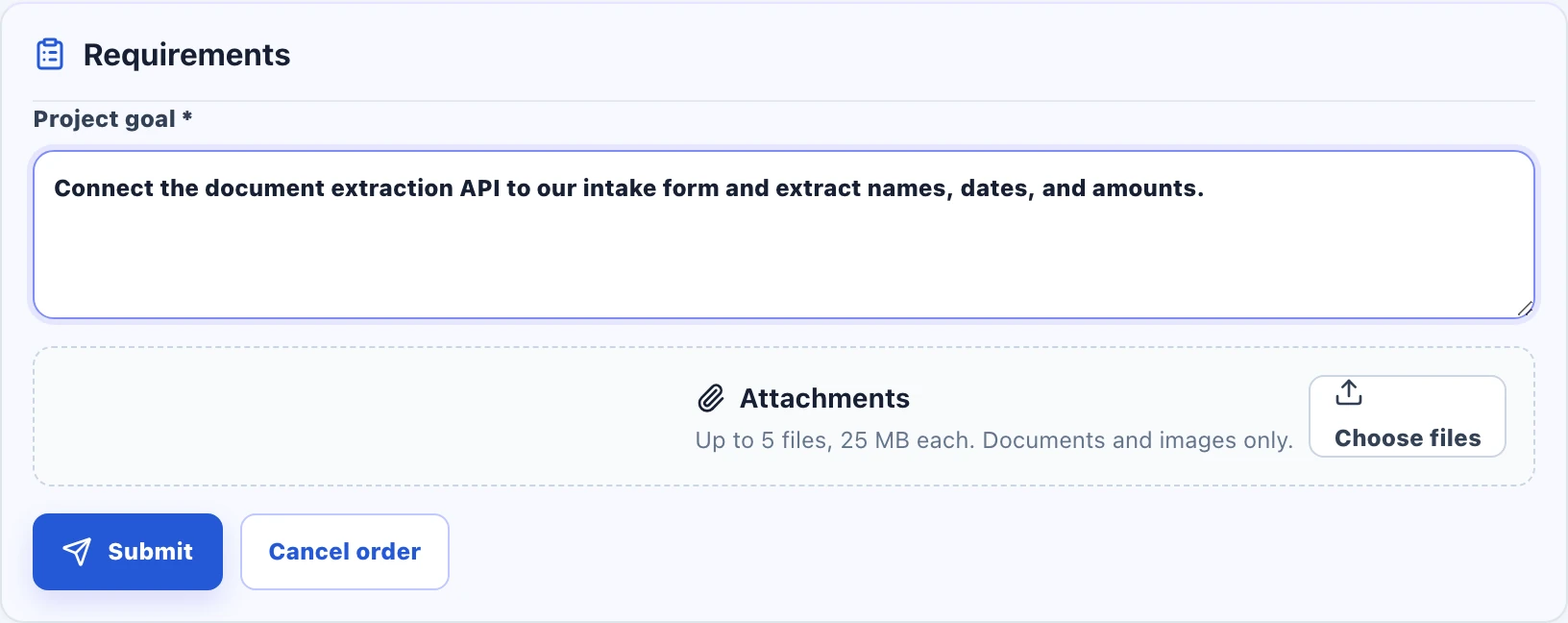
When the merchant requests more information
- Open the order that needs your attention and read the merchant’s request. The delivery countdown pauses while waiting for your information.
- Complete the reopened “Requirements” form and choose “Submit” to resume delivery.
- Ask the merchant through order messages if anything is unclear. Sending a chat message alone does not submit the requirements.
Check the delivery notes and files
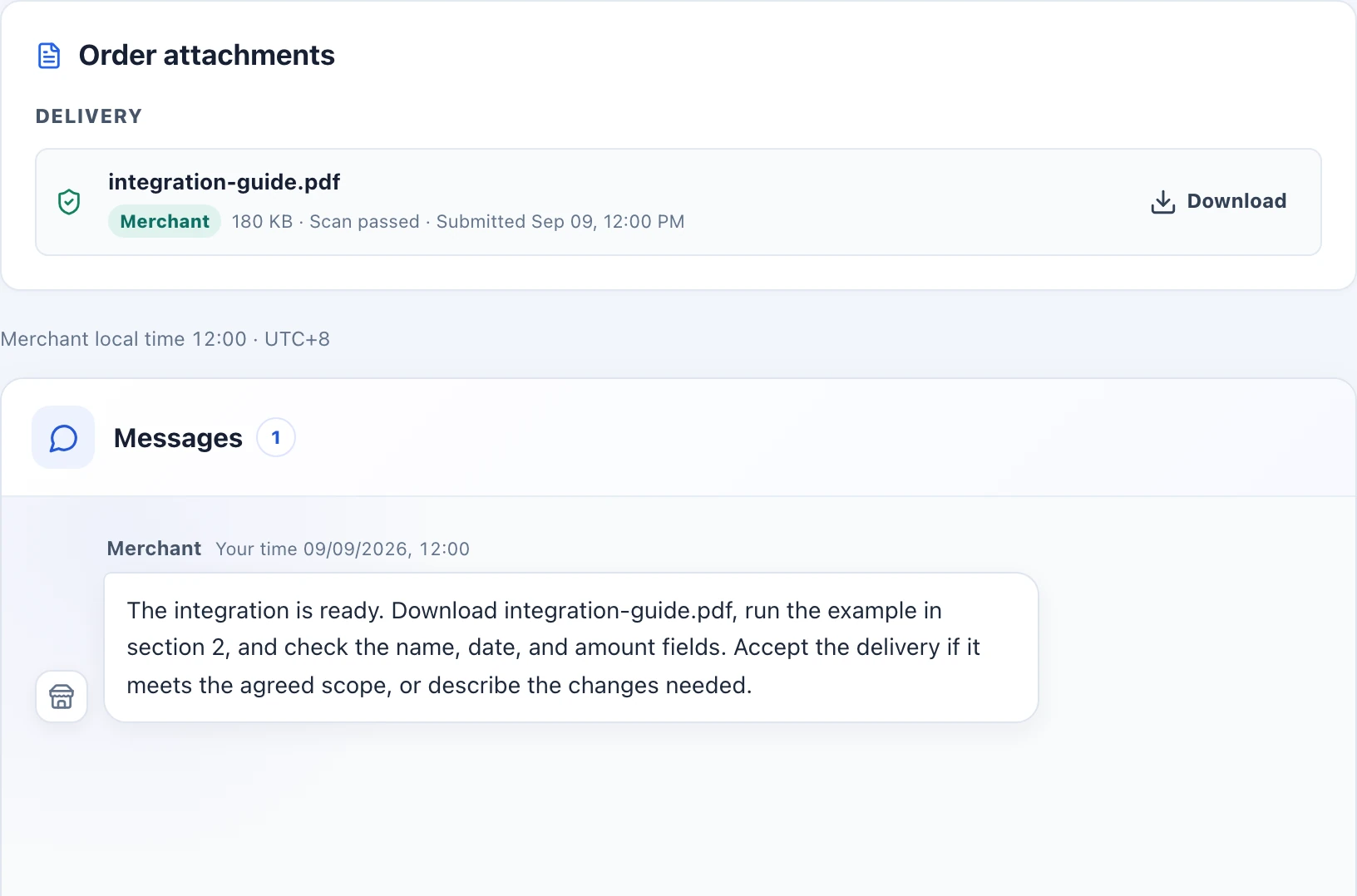
- After a delivery notification, open the order and read the merchant’s delivery notes in Messages.
- Download scanned files from the Delivery group under Order attachments, then check the result against the agreed scope and instructions.
Review delivery and accept or request revisions
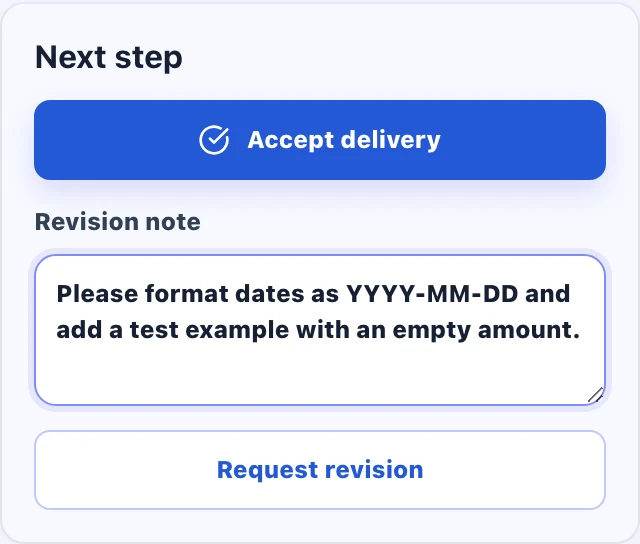
- If the result meets the agreement, choose “Accept delivery”. Otherwise, describe the issue in “Revision note” and choose “Request revision”. Check the order’s revision allowance for remaining requests.
- Each merchant delivery starts a 7-day acceptance window. At the deadline, an order still in delivered status is accepted automatically if it has no open dispute and has not been marked overdue. Request a revision or open a dispute within the window if needed.
If delivery is disputed or overdue
After submitting formal requirements and before acceptance, you can use “Order dispute” to explain unresolved delivery issues and choose “Open dispute”. Automatic acceptance and maintenance purchases pause during the platform review.
An approved dispute results in a full refund. If the order is overdue and shows a “Full refund” action, you can use that action directly. Available actions depend on the current order state. If you need help after acceptance, keep the order ID and contact the platform.
Contact order supportBuy or cancel maintenance after acceptance
- If an accepted order offers a maintenance package, review its price under “Maintenance”, choose “Buy maintenance”, and complete checkout. Service maintenance and API plans are separate purchases.
- Use the same order to check maintenance status, current period end, and renewal price. Choose “Cancel maintenance at period end” to stop renewal; maintenance is canceled when the current period ends.
- Before the period ends, choose “Resume maintenance renewal” if you want renewal to continue. If “Withdraw and receive a full refund” is available, follow the conditions shown for that action.
Check your result
- Formal requirements are submitted, and delivery is accepted or the outstanding issues are raised through the order.