
Create, save, and rotate an API key
Connect your own application to a subscribed API. Replace a lost key and update every caller that uses it.
On this page
Before you start
- An active subscription to the purchased API.
Create a key in your purchased API
- Open “Purchased products” and select the API you want to connect.
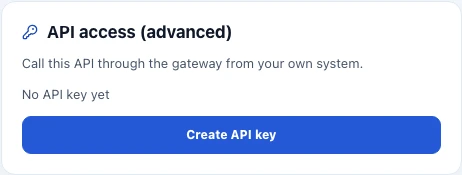
- Find “API access (advanced)”. Choose “Create API key” if none has been issued. If a key already exists, the action is “Rotate API key”.
- When the new key appears, choose “Copy” and save it in your password manager or server secret configuration. The full key is shown only once.
Use the key for this product
Send the key in the X-Invokora-Key header on every external call and use the base URL from this product’s detail page. The key grants only this account’s subscribed plan permissions for this API product. It cannot be used across products or bypass endpoint access, quotas, or rate limits.
Keep the key out of public repositories and frontend code distributed to visitors. If the endpoint documentation requires additional buyer authentication, provide it too; the Invokora key does not replace those fields.
The buyer workspace’s “Try It” uses your signed-in session. You do not need a new key for each test.
Rotate a lost or exposed key
- Choose “Rotate API key” in the same API detail and confirm the prompt. The old key stops working immediately.
- Save the new key immediately and replace the old value in every server, script, and automation that uses it.
- Send one request that follows the endpoint documentation to confirm access works with the new key.
If the subscription is paused or canceled
If a payment problem has paused access, open “Billing” and resolve the current subscription’s payment issue first. Rotating a key cannot restore paused access.
After you cancel the renewal, access continues until the current period ends and then stops, without deleting the original key record. Before the end you can resume the renewal in “Billing”; afterwards, choose “Resubscribe” in the product detail and confirm the subscription is active before checking your integration.
Open billingCheck your result
- The new key is saved securely and your callers use a valid key.